


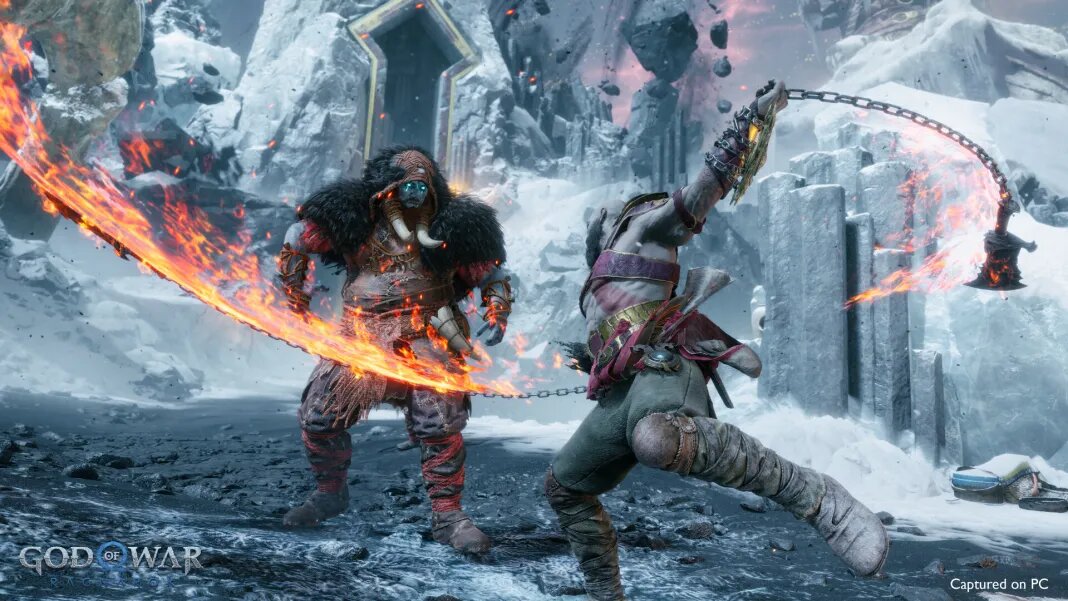
Since God of War Ragnarök has finally made its way to PC, it’s clear that the game is not just a visual marvel but also a technical powerhouse. Optimized to take advantage of high-end hardware, the PC version offers a range of graphical settings that allow players to push the visuals beyond what was possible on consoles. Whether you’re running the game on a modest build or a high-end rig, here’s everything you need to know about the game’s optimization and how to get the best graphical performance.
PC Optimization: A Smooth Experience Across the Board
As what we’ve seen with the previous God of War game on PC, Jetpack Interactive has done a great job of porting one of Sony’s highly anticipated sequels to PC. One of the standout features of Ragnarök on PC is its impressive optimization. The game can be run smoothly even on mid-tier setups, making use of adaptive settings that allow for steady frame rates and detailed environments without sacrificing too much performance. Here’s what makes it shine on PC:
- DLSS and FSR Support:
- NVIDIA’s DLSS (Deep Learning Super Sampling) is a game-changer for those with compatible RTX GPUs. DLSS uses AI to upscale lower-resolution frames, allowing you to maintain high frame rates while still enjoying near-native 4K visuals.
- For AMD users, FSR (FidelityFX Super Resolution) is also supported, giving you similar upscaling benefits without needing an RTX card.
- Customizable Graphical Options: Ragnarök offers a wide array of settings, from texture quality to shadow resolution, allowing you to fine-tune the experience to your hardware. Even players on lower-end systems can achieve impressive visuals by tweaking these settings.
- High Refresh Rate Support: The game supports up to 120Hz refresh rates and beyond, making it ideal for high-frame-rate gaming monitors. Coupled with powerful GPUs, this provides a buttery smooth experience, especially during action-heavy combat sequences.
Best Graphical Settings for God of War Ragnarök on PC
To help you get the most out of Ragnarök on PC, here’s a breakdown of the best graphical settings based on your system’s performance level:
1. Ultra High-End PCs (RTX 3080/4090 or AMD RX 6900 XT and up)
If you’re rocking one of the latest GPUs, you’ll want to take full advantage of the game’s visuals without worrying about performance.
- Resolution: Native 4K (3840×2160)
- Frame Rate: Unlocked, aiming for 60-120fps
- Texture Quality: Ultra
- Shadow Quality: Ultra
- Reflections: Ultra (Enable ray-traced reflections)
- DLSS/FSR: DLSS Quality or FSR Ultra Quality for smoother gameplay at higher resolutions.
- Ambient Occlusion: High
- Anisotropic Filtering: 16x
- V-Sync: Off (unless screen tearing is noticeable)
This setup will deliver the most visually stunning experience, with high frame rates and minimal stuttering. You’ll get crisp textures, detailed shadows, and ray-traced lighting effects for the most immersive experience possible.
2. Mid-Range PCs (RTX 2060/3060 or AMD RX 5700 XT)
For those with a solid mid-tier build, here are the best settings to maintain a balance between performance and visual quality.
- Resolution: 1440p (2560×1440)
- Frame Rate: Locked at 60fps for smooth gameplay
- Texture Quality: High
- Shadow Quality: Medium-High
- Reflections: Medium (Disable ray-tracing for better performance)
- DLSS/FSR: DLSS Balanced or FSR Quality
- Ambient Occlusion: Medium
- Anisotropic Filtering: 8x
- V-Sync: On (to avoid screen tearing)
This configuration ensures you get fluid gameplay at 60fps while still enjoying detailed textures and lighting effects. Turning down shadows and disabling ray tracing helps boost performance without drastically sacrificing the visual quality.
3. Lower-End PCs (GTX 1650 or RX 580)
For players on older or less powerful GPUs, optimizing for a steady 60fps at 1080p is key to enjoying Ragnarök without significant frame dips.
- Resolution: 1080p (1920×1080)
- Frame Rate: Locked at 60fps or 30fps for more stability
- Texture Quality: Medium
- Shadow Quality: Low
- Reflections: Off
- DLSS/FSR: FSR Performance (for AMD users)
- Ambient Occlusion: Low
- Anisotropic Filtering: 4x
- V-Sync: On
Lowering textures, shadows, and turning off reflections can help maintain consistent frame rates, even on older systems. With these settings, you’ll still experience smooth gameplay with respectable visuals, making Ragnarök accessible to a wide range of PCs.
Additional Tweaks for the Best Experience
- Turn on DLSS/FSR: If your GPU supports DLSS or FSR, always enable them. DLSS in particular can significantly boost frame rates without a noticeable hit to visual quality, especially when playing in 1440p or 4K.
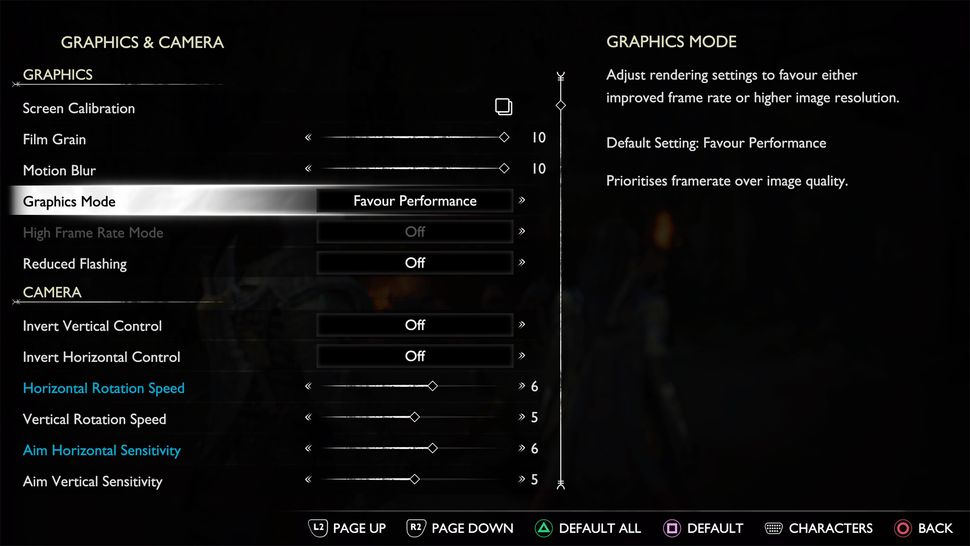
- Adjust Motion Blur and Film Grain: Some players find that reducing or turning off motion blur and film grain improves visual clarity, especially in fast-moving sequences.
- Enable G-Sync or FreeSync: If you have a monitor that supports variable refresh rates (G-Sync or FreeSync), enabling these features will make gameplay smoother by reducing screen tearing and input lag.
God of War Ragnarök on PC is a masterclass in optimization, capable of running beautifully on both high-end and more modest systems. By leveraging features like DLSS, FSR, and a wide range of graphical settings, players can tailor their experience to suit their hardware. Whether you’re chasing the smoothest 60fps in combat or striving for 4K visuals with ray tracing, Ragnarök delivers a visually stunning and smooth experience across the board.